The Japanese voice that comes preinstalled on an iPhone or iPad is the compact one, and it can sound flat and a little robotic. Your device can download a high-quality Japanese voice for free, and once you do, Conversation Shower, Conversation Sim and Fateful Choices sound far closer to a real person. It takes about three minutes, once.
Menu names and the list of voices differ a little between iOS versions and regions. The path below is the current one; if a name does not match exactly, look for the closest wording — the order of the screens is the same.
Download a high-quality Japanese voice
The whole path, if you already know your way around Settings:
Settings › Accessibility › Spoken Content › Voices › Japanese › tap the ↓ cloud next to a voice marked Enhanced or Premium
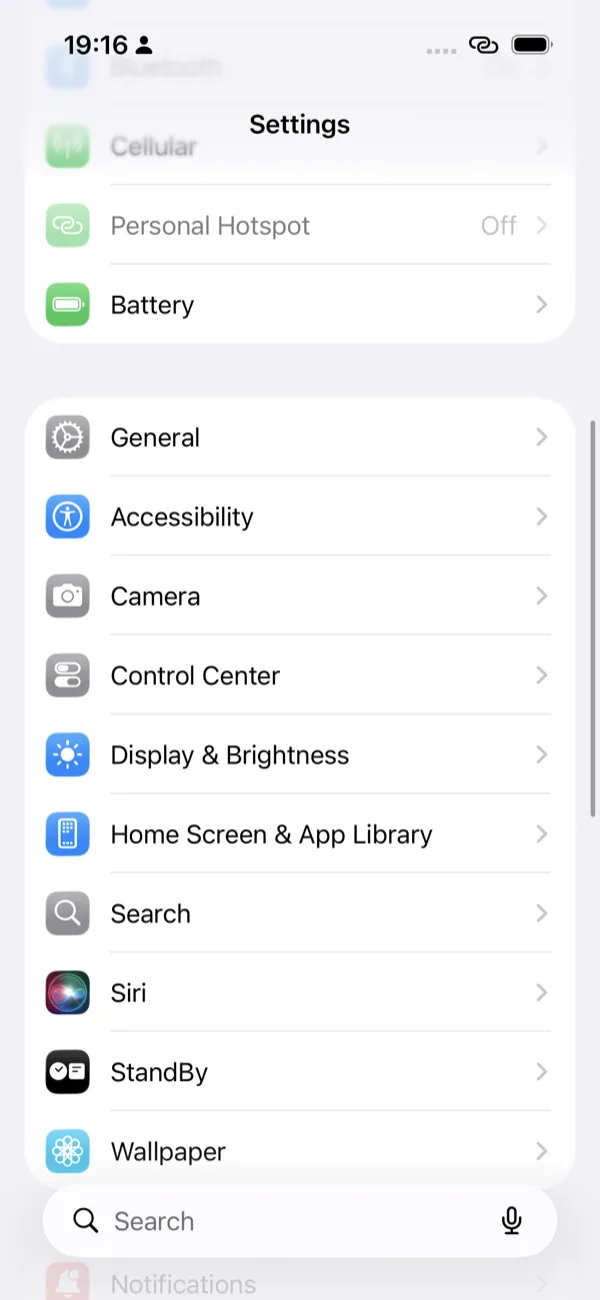
Open Settings and tap Accessibility
Open your device's Settings app (the grey gear) and tap Accessibility. It sits near the top, together with General.
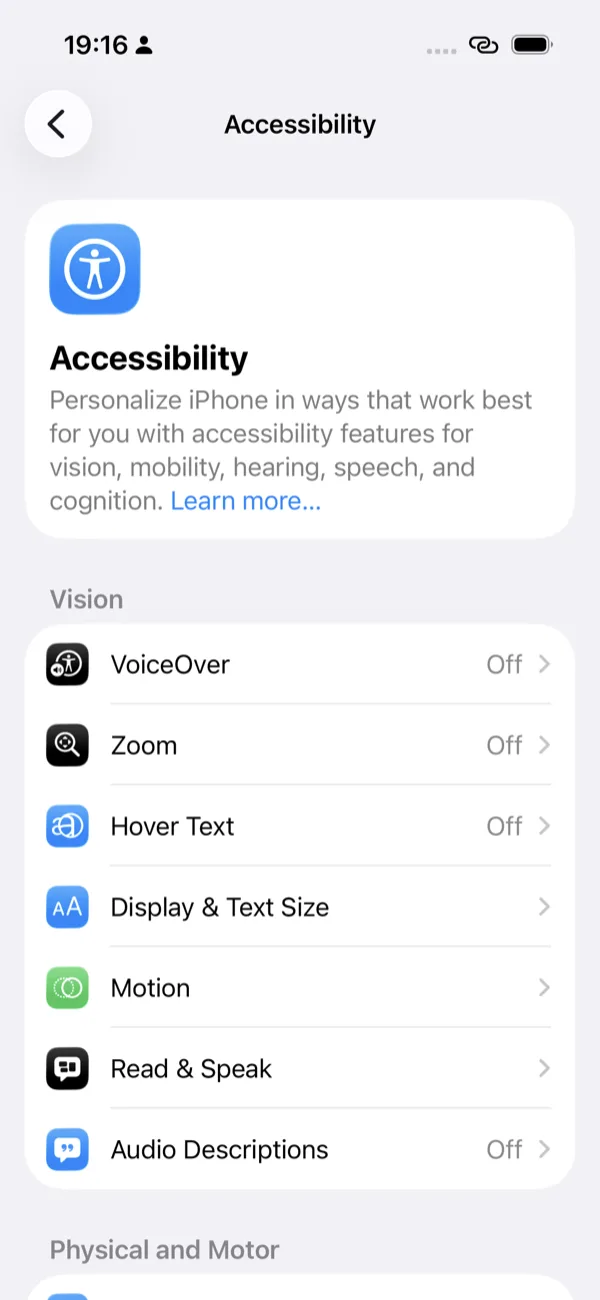
Tap Spoken Content
Under the Vision heading, tap Spoken Content — the row with the speech-bubble icon.
Some iOS versions name this row differently (you may see Read & Speak). It is the same screen.
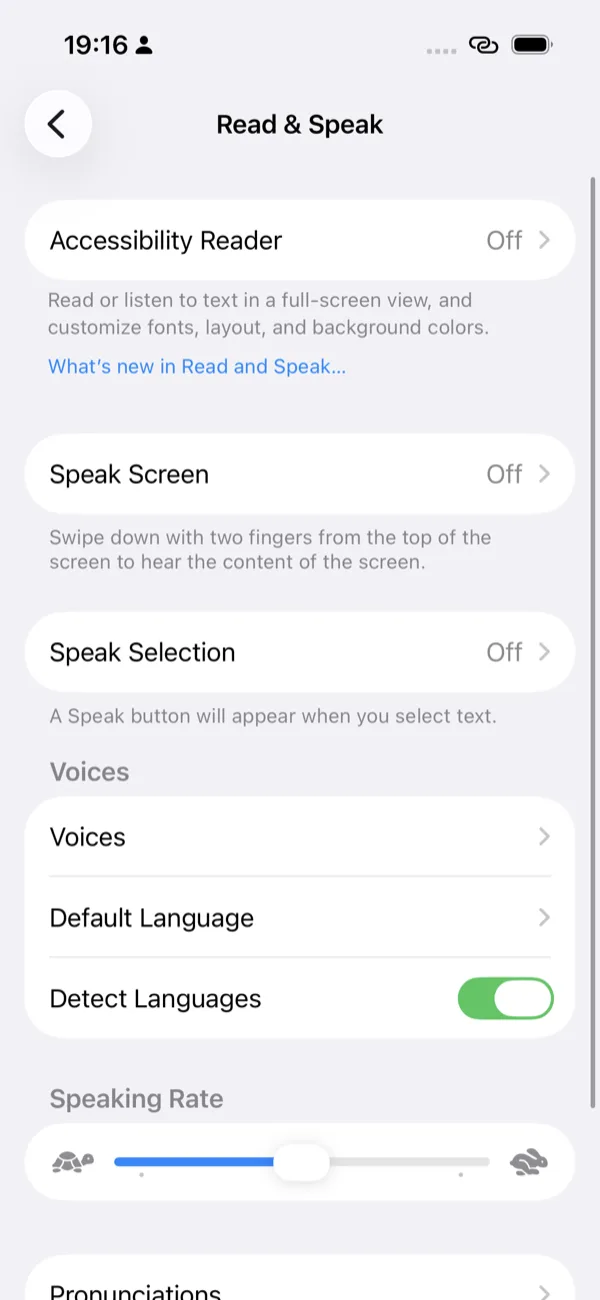
Tap Voices
Scroll down a little and tap Voices. This is the list of every language your device can speak.
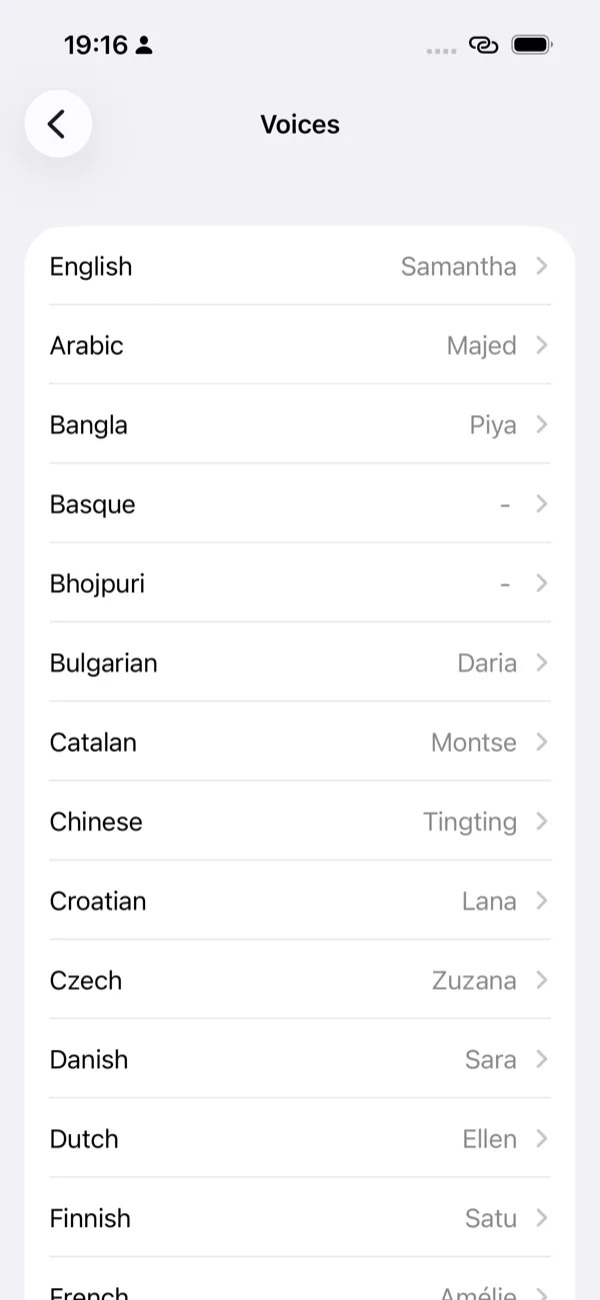
Tap Japanese
Pick Japanese from the list of languages. You do not need to change anything about English here — this only adds a Japanese voice.
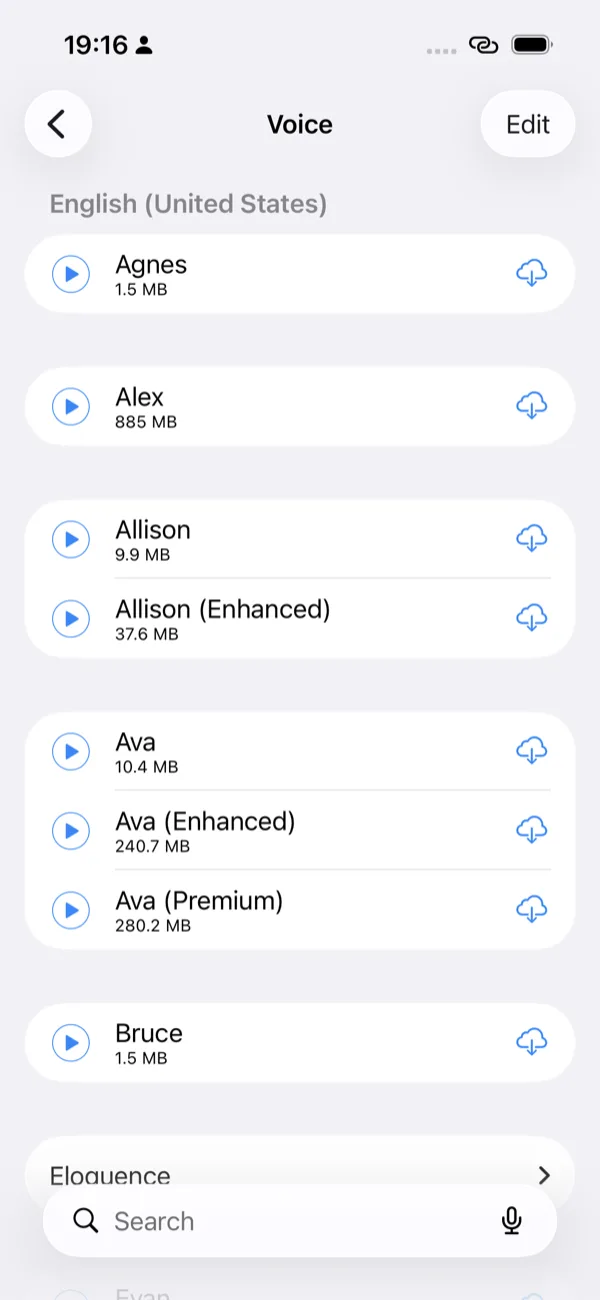
Download a voice marked Enhanced or Premium
You will see the Japanese voices with a cloud-and-down-arrow icon beside each one. Tap the icon and the download starts.
The word after a voice's name is its quality tier. Plain (no label) is the compact voice already on your device; Enhanced and Premium are the natural-sounding ones, and both are free. They are large — often 100–250 MB each — so Wi-Fi is recommended. If the list offers both a female and a male voice, download one of each: the app can then tell your partner, your own character and the narrator apart by voice.
Come back to the app and assign the voices
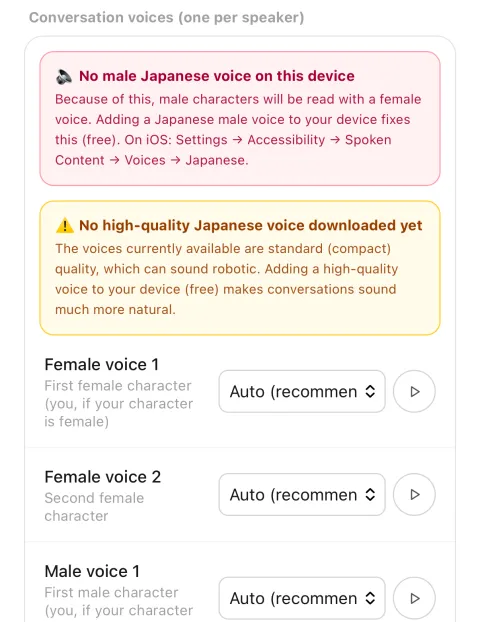
Open Koisuru Nihongo Cefrly Lab and go to Settings › Conversation voices. The voices you just downloaded appear in the dropdowns, marked with a ★ for high quality. Choose one per slot and the change applies to every conversation.
| Slot | Who it reads |
|---|---|
| Female voice 1 | The first female character — that is you, if your character is female |
| Female voice 2 | A second female character in the same scene |
| Male voice 1 | The first male character — that is you, if your character is male |
| Male voice 2 | A second male character in the same scene |
| Narrator voice | Scene descriptions, station announcements, and anything not tied to a character |
Leaving a slot on Auto is fine — the app then picks the highest-quality Japanese voice of the right gender that your device has. And if a voice you assigned is missing later, it falls back in order: another voice of the same gender → the narrator voice → your device's default. Read-aloud never breaks; only how natural it sounds changes.
Why two characters of the same gender can share a voice
Apple only lets apps use the standard speech voices, and the Siri voices are not among them — that is an iOS restriction, not a limit of this app. In practice that leaves roughly one high-quality Japanese female voice and one high-quality Japanese male voice available to us (on the device we test with, Kyoko and Otoya; your list may differ by iOS version).
So when two women — or two men — appear in the same scene, the app assigns the same voice to both and shifts the second speaker's pitch so you can still tell who is talking. Your own character always keeps the unshifted voice. Nothing to configure; press ▷ on Voice 2 in Settings to hear the difference.
If something looks wrong
I downloaded a voice, but nothing sounds different
Go to Settings › Conversation voices in the app and select the new voice for the slots (or set them back to Auto). If it still sounds the same, quit the app fully and reopen it — iOS sometimes only publishes a newly downloaded voice to apps after a restart.
My character is read with the wrong gender's voice
This almost always means your device has no Japanese voice of that gender installed. The app tells you so in Settings › Conversation voices. Add the missing one with the steps above, then assign it. Having one female and one male Japanese voice installed keeps every scene clear.
Which voice should I pick?
Any voice labelled Enhanced or Premium. Premium is the most natural and the largest; Enhanced is close behind and lighter. The plain, unlabelled voice is the compact one that was already there — it works, it just sounds more synthetic.
I am worried about data and storage
Each voice is roughly 100–250 MB, so download over Wi-Fi. You can remove a voice later from the same screen (swipe the voice to the left). Removing it does not affect the app — read-aloud falls back to the compact voice.
What is the difference between an on-device voice and a network voice?
The voices you download here are processed on your device, so read-aloud works with no connection at all. If you instead choose a "network" or "online high-quality" voice — an option on some platforms, notably Android — the text being read is sent to your operating system's speech service. If you want read-aloud to stay entirely offline, pick an on-device voice. See the Privacy Policy for details.
What about the English narration?
Grammar explanations and translations are read in English using your device's English voices, which are usually already installed. If you want those to sound better too, repeat the same steps and pick English instead of Japanese in step 4, then set the voice under Settings › English voice in the app.
I am on Android
Open your device's Settings and look for text-to-speech: typically Settings › Accessibility › Text-to-speech output (or System › Languages & input), open the settings for the Google text-to-speech engine, then Install voice data and add Japanese. Exact names vary by manufacturer, and the voices are named differently from iOS. The app's Settings › Conversation voices screen works the same way afterwards; if Android reports no gender for its voices, use the ▷ preview button and assign by ear.
Still stuck? Write to cefrlylab@gmail.com — a screenshot of the screen you are on is enough for us to point at the right row.